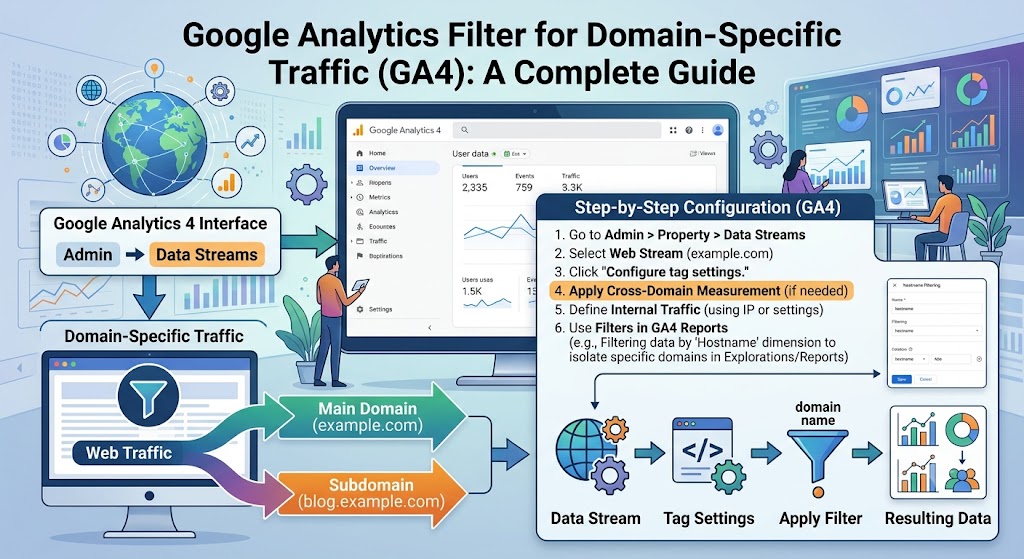

Google Analytics 4 (GA4) is one of the most powerful web analytics platforms available today. It helps website owners, marketers, and businesses understand where visitors come from, what they do on a website, and how marketing campaigns perform. However, if your GA4 property tracks multiple websites, subdomains, or staging environments, your reports can quickly become cluttered with data from different sources. This makes it difficult to measure the performance of an individual website.
Filtering traffic by domain allows you to isolate data for a specific website so you can analyze its visitors, conversions, engagement, and traffic sources without interference from other domains. Whether you’re managing multiple client websites, running separate business brands, or monitoring development and production environments, domain-specific filtering helps you make more informed decisions.
In this guide, you’ll learn several ways to filter traffic for a specific domain in Google Analytics 4, along with best practices and common mistakes to avoid.
Why Filter Traffic by Domain?
Many businesses use a single GA4 property to collect data from multiple domains. While this approach simplifies management, it also combines all website traffic into one dataset. Without filtering, it becomes difficult to answer questions like:
- How many visitors came to my main website?
- Which pages on a specific domain receive the most traffic?
- Which marketing campaigns generated conversions for one website?
- Is spam traffic affecting one particular domain?
- How does one website compare with another?
Filtering by domain solves these problems by displaying data for only the website you want to analyze.
Benefits of Domain-Specific Filtering
- View accurate traffic for individual websites.
- Compare performance between multiple domains.
- Improve campaign reporting.
- Monitor SEO growth separately for each website.
- Detect spam traffic or configuration issues.
- Create cleaner dashboards for clients.
Method 1: Filter Reports Using the Hostname Dimension
The easiest method in Google Analytics 4 is using the Hostname dimension. The hostname identifies the domain where an event occurred.
For example:
- example.com
- blog.example.com
- shop.example.com
- demo.example.com
Step 1: Open Google Analytics
Sign in to your Google Analytics account and select the appropriate GA4 property.
Step 2: Navigate to Reports
Open any standard report, such as:
- Pages and Screens
- Landing Pages
- Traffic Acquisition
- User Acquisition
- Events
Step 3: Click “Add Comparison”
At the top of the report, click Add Comparison.
This feature lets you compare or isolate data based on specific dimensions.
Step 4: Choose Hostname
Under Dimension, select:
Hostname
If it doesn’t appear immediately, search for it.
Step 5: Enter Your Domain
Choose one of the following conditions:
- Equals
- Contains
Example:
Hostname contains example.comor
Hostname equals example.comClick Apply.
The report will now display data only for your selected domain.
Method 2: Create an Exploration Report
Explorations provide more advanced reporting capabilities than standard reports.
Step 1
Go to:
Explore → Free Form
Step 2
Add these dimensions:
- Hostname
- Page Path
- Landing Page
- Device Category
- Country
Step 3
Add useful metrics such as:
- Users
- Sessions
- Engaged Sessions
- Event Count
- Conversions
- Revenue
Step 4
Under Filters, select:
Hostname = yourdomain.comor
Hostname contains yourdomain.comNow your custom report only includes data from the selected website.
Method 3: Filter in Looker Studio
Many businesses use Looker Studio for dashboards.
To filter by domain:
- Open your dashboard.
- Select a chart or report.
- Click Add Filter.
- Create a new filter.
- Select Hostname.
- Set:
Hostname = example.comor
Hostname contains example.comNow every chart using that filter will display data only from the selected domain.
Method 4: Create Separate Comparisons
If you manage multiple websites, comparisons are useful.
Example:
| Comparison | Domain |
|---|---|
| Website A | example.com |
| Website B | store.example.com |
| Website C | blog.example.com |
This allows you to compare traffic, engagement, and conversions side by side without creating multiple reports.
Understanding the Hostname Dimension
The Hostname dimension records the domain name where an event was triggered.
For example:
| URL | Hostname |
|---|---|
| https://example.com/about | example.com |
| https://shop.example.com/products | shop.example.com |
| https://blog.example.com/post | blog.example.com |
This is why Hostname is the most reliable dimension for filtering website traffic.
When Should You Use Domain Filters?
Domain filtering is particularly useful if you:
- Manage multiple client websites.
- Track several brands in one GA4 property.
- Use development and production environments.
- Operate multilingual websites on different domains.
- Monitor franchise or regional websites.
- Need separate SEO performance reports.
Best Practices
To ensure accurate reporting:
Enable Cross-Domain Tracking
If visitors move between multiple websites during their journey, configure cross-domain tracking to prevent session breaks and duplicate users.
Exclude Development Domains
Remove traffic from staging, testing, and development websites whenever possible to keep production reports clean.
Use Consistent UTM Parameters
Consistent campaign tagging makes it easier to evaluate marketing performance for each domain.
Regularly Review Hostname Reports
Checking hostname reports helps identify unexpected domains, spam traffic, or tracking errors.
Verify Tracking Installation
Confirm that the GA4 measurement ID is correctly installed on every website you intend to track.
Common Mistakes to Avoid
Many users accidentally create inaccurate reports because of these common errors:
- Filtering by Page URL instead of Hostname.
- Forgetting to configure cross-domain measurement.
- Mixing production and staging websites in one report.
- Using the wrong GA4 property.
- Not excluding internal company traffic.
- Creating filters that are too broad, such as using only “.com” instead of the full domain.
Final Thoughts
Filtering domain-specific traffic in Google Analytics 4 is an essential practice for businesses that manage multiple websites or subdomains. By using the Hostname dimension in standard reports, creating custom Exploration reports, or applying filters in Looker Studio, you can isolate traffic for a single website and gain clearer insights into user behavior, SEO performance, marketing campaigns, and conversions.
Regularly reviewing domain-level data helps you identify opportunities for optimization, detect tracking issues, and make better data-driven decisions. Whether you’re a digital marketer, SEO professional, or business owner, mastering domain-specific filtering in GA4 ensures that your analytics remain accurate, organized, and actionable.