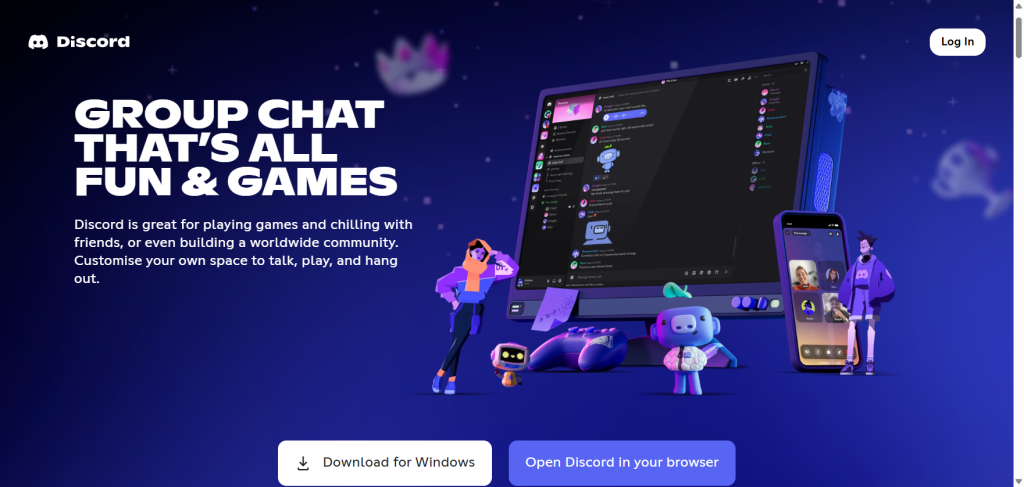

Discord has grown far beyond its gaming roots to become one of the world’s most popular communication platforms. Today, businesses, educational institutions, online communities, content creators, and remote teams rely on Discord for real-time communication and collaboration. While many users install the desktop or mobile application, Discord can also be accessed directly through a web browser, eliminating the need for software downloads and providing instant access from virtually any device.
In this comprehensive guide, you’ll learn everything you need to know about using Discord in a browser, including its features, benefits, limitations, setup process, and best practices.
What Is Discord Browser?
Discord Browser refers to the web-based version of Discord that runs directly within popular browsers such as Google Chrome, Microsoft Edge, Mozilla Firefox, Safari, and Opera. Instead of downloading the desktop application, users can simply visit the Discord website and log into their accounts.
The browser version offers access to most of Discord’s core features, including:
- Text messaging
- Voice channels
- Video calls
- Screen sharing
- Community servers
- Direct messages
- Notifications
- File sharing
- Server management tools
This makes it a convenient solution for users who need quick access to Discord without installing additional software.
Why Use Discord in a Browser?
Many users choose the browser version because of its accessibility and convenience. Whether you’re using a shared computer, working from a restricted device, or simply want to avoid software installations, Discord Browser offers several advantages.
No Installation Required
One of the biggest benefits is that users can access Discord instantly. There’s no need to download files, run installers, or manage software updates.
Access from Any Device
You can log into your Discord account from:
- Windows computers
- Mac systems
- Linux devices
- Chromebooks
- Public computers
- Workstations
As long as a compatible browser is available, Discord can be accessed within seconds.
Automatic Updates
Unlike desktop applications that require updates, the browser version always runs the latest version automatically.
Reduced Storage Usage
Because no software is installed locally, Discord Browser consumes minimal storage space on your device.
How to Access Discord in a Browser
Getting started with Discord Browser is straightforward.
Step 1: Open Your Preferred Browser
Launch a modern browser such as:
- Google Chrome
- Microsoft Edge
- Mozilla Firefox
- Safari
- Opera
For the best experience, use the latest version of your browser.
Step 2: Visit Discord
Navigate to Discord’s official website and select the option to open Discord in your browser.
Step 3: Log In
Enter your:
- Email address
- Username
- Password
If two-factor authentication is enabled, complete the verification process.
Step 4: Start Communicating
After logging in, you’ll gain access to:
- Existing servers
- Direct messages
- Voice channels
- Community discussions
- Server settings
The interface closely resembles the desktop application, making navigation easy.
Features Available in Discord Browser
The web version includes most of the functionality users expect from Discord.
Text Messaging
Users can:
- Send messages
- Share files
- Use emojis
- React to posts
- Mention users
- Create threads
Text communication works almost identically to the desktop version.
Voice Communication
Voice channels allow members to communicate in real time.
Common use cases include:
- Team meetings
- Gaming sessions
- Study groups
- Online communities
- Customer support
Video Calling
Discord Browser supports video conferencing directly through compatible browsers.
Users can:
- Enable webcams
- Join video meetings
- Conduct virtual discussions
- Host community events
Screen Sharing
Screen sharing allows users to present:
- Software demonstrations
- Online classes
- Gaming sessions
- Team presentations
Server Management
Administrators can manage:
- User permissions
- Roles
- Channels
- Moderation settings
- Community features
Most administrative tools remain available in the browser version.
Discord Browser vs Desktop App
Many users wonder whether they should use Discord Browser or install the desktop application.
| Feature | Browser Version | Desktop App |
|---|---|---|
| Installation Required | No | Yes |
| Storage Usage | Minimal | Higher |
| Automatic Updates | Yes | Manual/Automatic |
| Performance | Good | Excellent |
| Notifications | Browser-based | Native |
| Resource Usage | Lower | Moderate |
| Gaming Integrations | Limited | Full Support |
For casual use, the browser version is often sufficient. Power users and gamers may prefer the desktop application for advanced integrations and performance.
Best Browsers for Discord
Although Discord supports most major browsers, some perform better than others.
Google Chrome
Chrome is widely considered one of the best browsers for Discord because of:
- Fast performance
- Strong compatibility
- Reliable updates
- Efficient voice and video support
Microsoft Edge
Edge offers:
- Excellent memory management
- Strong security
- Chromium-based compatibility
Mozilla Firefox
Firefox provides:
- Privacy-focused browsing
- Reliable Discord performance
- Open-source transparency
Safari
Safari works well for Apple users but may occasionally experience feature limitations compared to Chromium-based browsers.
Common Discord Browser Issues and Solutions
Microphone Not Working
If Discord cannot detect your microphone:
- Check browser permissions
- Verify microphone settings
- Refresh the page
- Restart the browser
No Audio Output
Try the following:
- Verify speaker settings
- Check volume controls
- Confirm browser permissions
- Test another browser
Discord Not Loading
Possible fixes include:
- Clearing browser cache
- Updating the browser
- Disabling extensions
- Checking internet connectivity
Video Call Problems
Video issues may occur because of:
- Camera permissions
- Browser incompatibility
- Slow internet connections
- Outdated browser versions
Security Tips for Discord Browser Users
Keeping your Discord account secure is essential.
Enable Two-Factor Authentication
2FA adds an extra layer of protection and significantly reduces unauthorized access risks.
Avoid Public Computers
If using Discord on shared devices:
- Log out after use
- Avoid saving passwords
- Use private browsing mode
Verify Server Invitations
Only join trusted servers to avoid scams and malicious links.
Watch for Phishing Attempts
Never share:
- Passwords
- Authentication codes
- Recovery keys
Discord staff will never request this information.
How Businesses Use Discord Browser
Discord has become a powerful platform for business communication.
Organizations use Discord for:
Team Collaboration
Remote teams can:
- Hold meetings
- Share files
- Coordinate projects
Customer Communities
Brands create dedicated servers for:
- Product discussions
- Customer support
- User feedback
Online Events
Companies host:
- Webinars
- Product launches
- Community Q&A sessions
Training Programs
Educational institutions and businesses use Discord for virtual learning and knowledge sharing.
Discord Browser for Students
Students benefit from Discord Browser because it enables:
- Study groups
- Project collaboration
- Exam preparation
- Educational communities
The ability to access Discord from school-issued devices without installing software makes it particularly useful.
Advantages of Discord Browser
The browser version offers numerous benefits:
Convenience
Access your account instantly without downloads.
Cross-Platform Support
Works across multiple operating systems.
Easy Accessibility
Perfect for temporary or shared devices.
Automatic Maintenance
No software updates or installations required.
Flexible Communication
Supports text, voice, and video interactions.
Limitations of Discord Browser
Although highly capable, the browser version has some limitations.
Reduced Gaming Integration
The desktop app provides deeper integration with gaming platforms.
Browser Dependency
Performance depends heavily on the browser being used.
Resource Constraints
Multiple browser tabs may affect performance during large voice calls.
Notification Limitations
Browser notifications may not be as reliable as native desktop notifications.
Tips for the Best Discord Browser Experience
To maximize performance:
- Use a modern browser.
- Keep your browser updated.
- Close unnecessary tabs.
- Maintain a stable internet connection.
- Enable browser notifications.
- Use a quality headset for voice communication.
- Clear browser cache regularly.
These practices can significantly improve stability and responsiveness.
The Future of Discord Browser
As browser technology continues to evolve, the gap between web applications and desktop software is shrinking. Discord’s web platform has become increasingly sophisticated, supporting advanced communication features that were once limited to installed applications.
Future improvements may include:
- Better browser notifications
- Enhanced performance optimization
- Improved screen-sharing capabilities
- More advanced collaboration tools
- AI-powered moderation and productivity features
As organizations continue embracing remote work and digital collaboration, browser-based communication platforms like Discord are likely to become even more important.
Conclusion
Discord Browser provides a powerful and convenient way to access one of the world’s leading communication platforms without installing additional software. Whether you’re a gamer, student, professional, educator, or community manager, the browser version delivers most of the essential features needed for effective communication and collaboration.
With support for text messaging, voice calls, video conferencing, file sharing, and server management, Discord Browser serves as a flexible solution for users who value accessibility and ease of use. While the desktop application still offers some advanced capabilities, the browser version remains an excellent choice for everyday communication, making it easier than ever to stay connected from virtually any device.